
Kinetic uses birthdays to send the right reminder at the right moment. If you've kept birthdays in your iPhone Contacts for years, this guide brings them in — about five minutes, no CSV exports required.
You'll need an iPhone, iPad, or Mac with the Shortcuts app.
Step 1 — Open the Apple Contacts panel
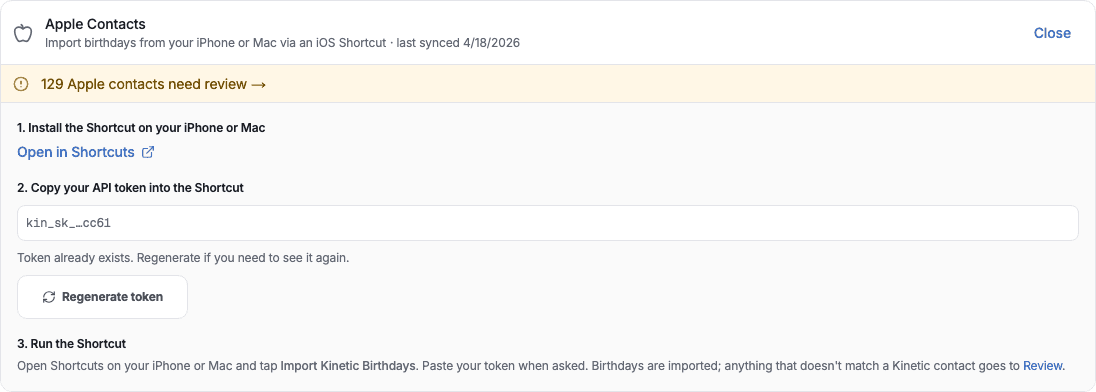
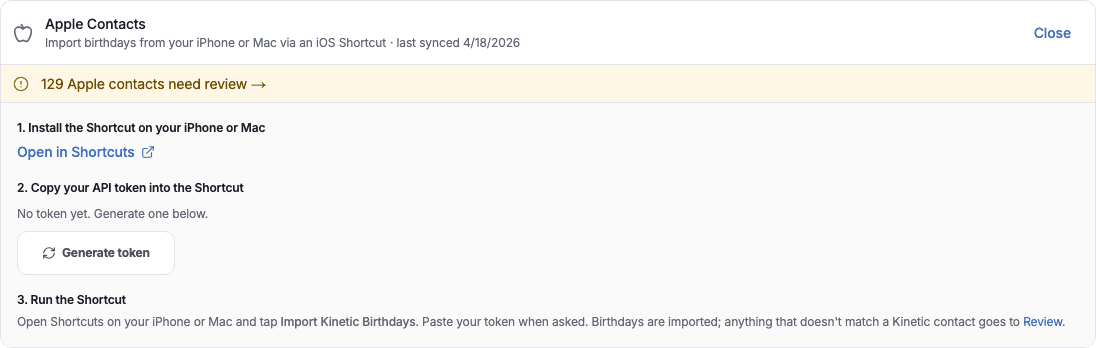
Go to Settings → Integrations, find Apple Contacts, and click Setup.
Step 2 — Install the Shortcut on your phone
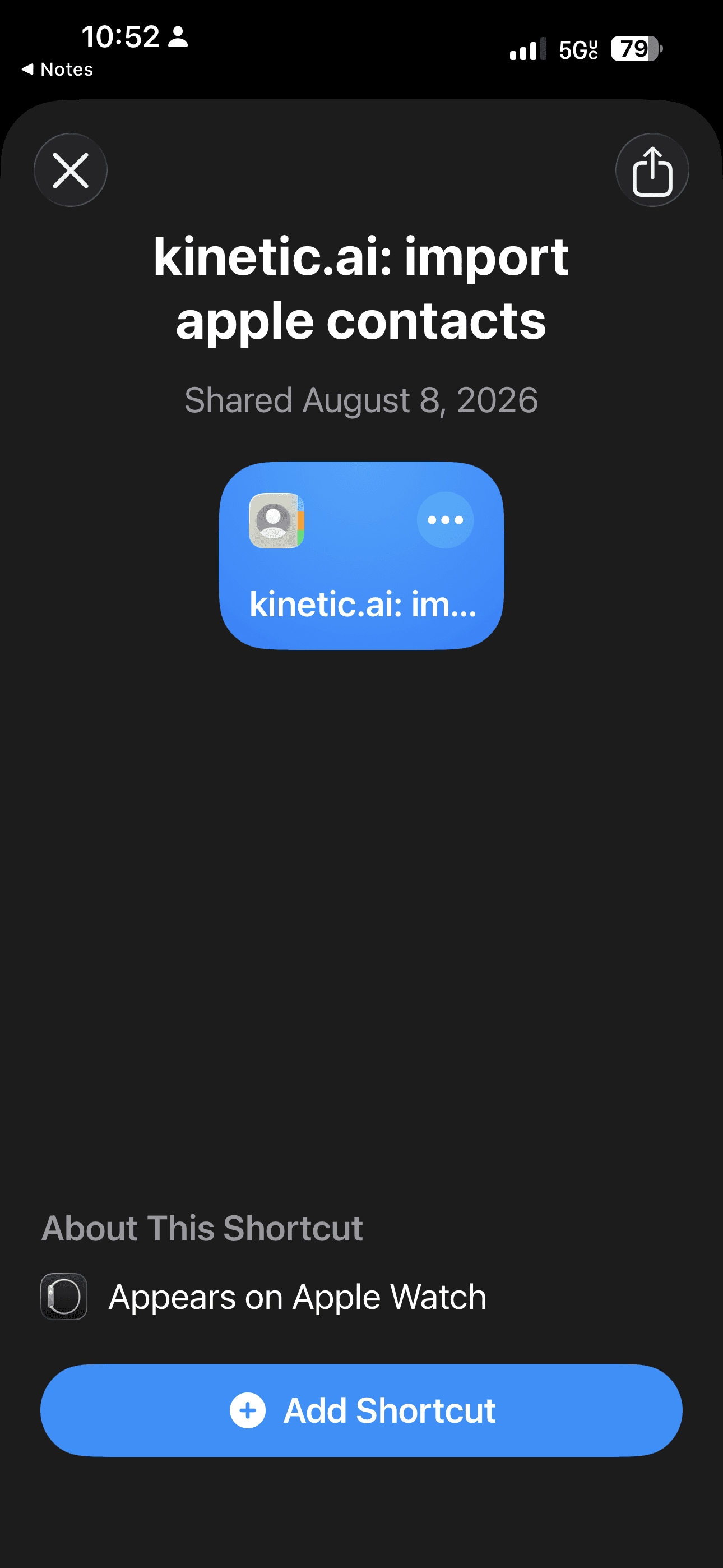
On your iPhone or Mac, open this link: kinetic.ai: import apple contacts. The Shortcuts app will open and show you a preview — tap Add Shortcut at the bottom. (You can also click Open in Shortcuts from the setup panel if you'd rather start there.)

Reading this on a computer? Point your iPhone camera at this code to open the Shortcut on your phone, where you'll run it.
Step 3 — Let Shortcuts send a large payload
iOS blocks Shortcuts from sending large bursts of data by default — and your contacts list is bigger than the default limit. Flip one toggle to fix it (one-time setup):
- Open the iPhone Settings app and scroll down to Shortcuts.
- Tap Advanced.
- Turn on Allow Sharing Large Amounts of Data.
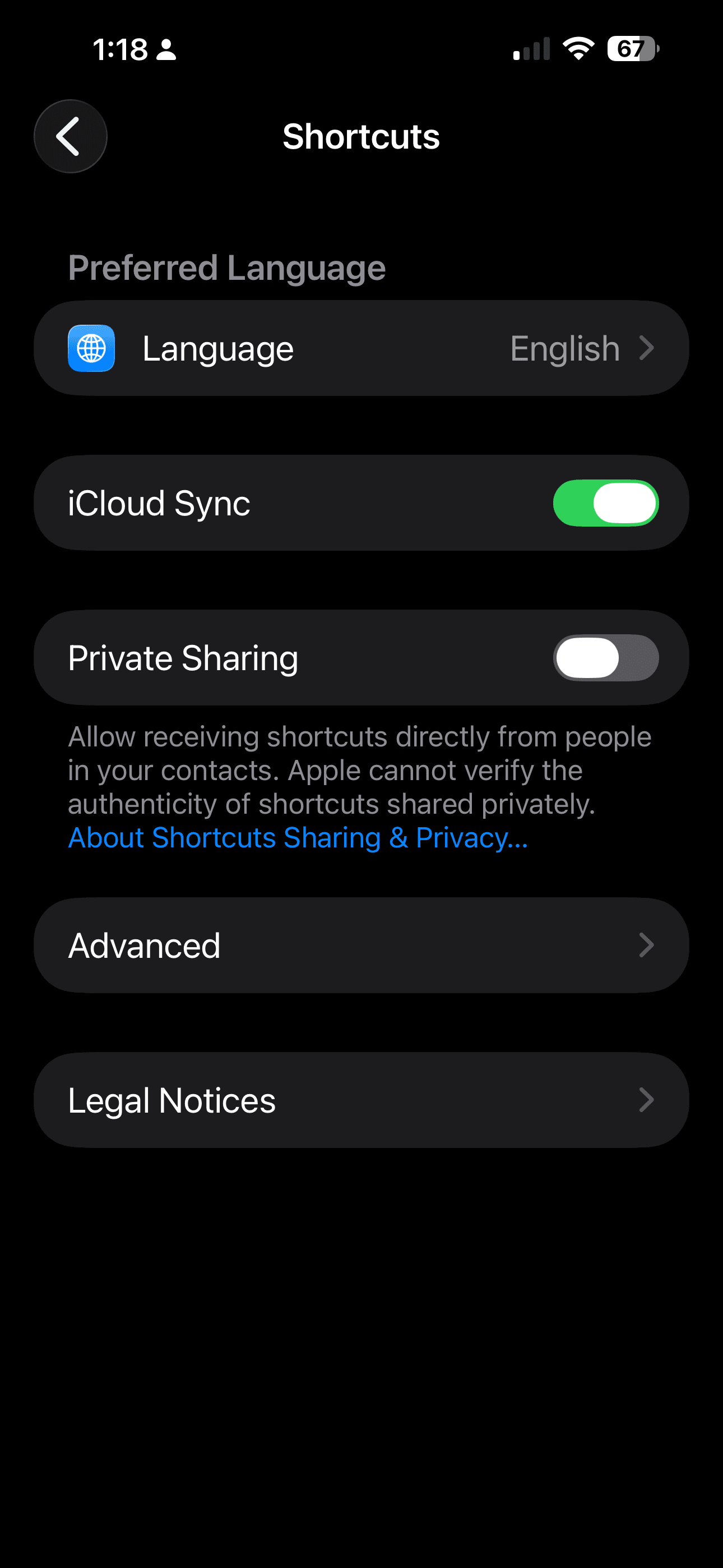
Settings → Shortcuts
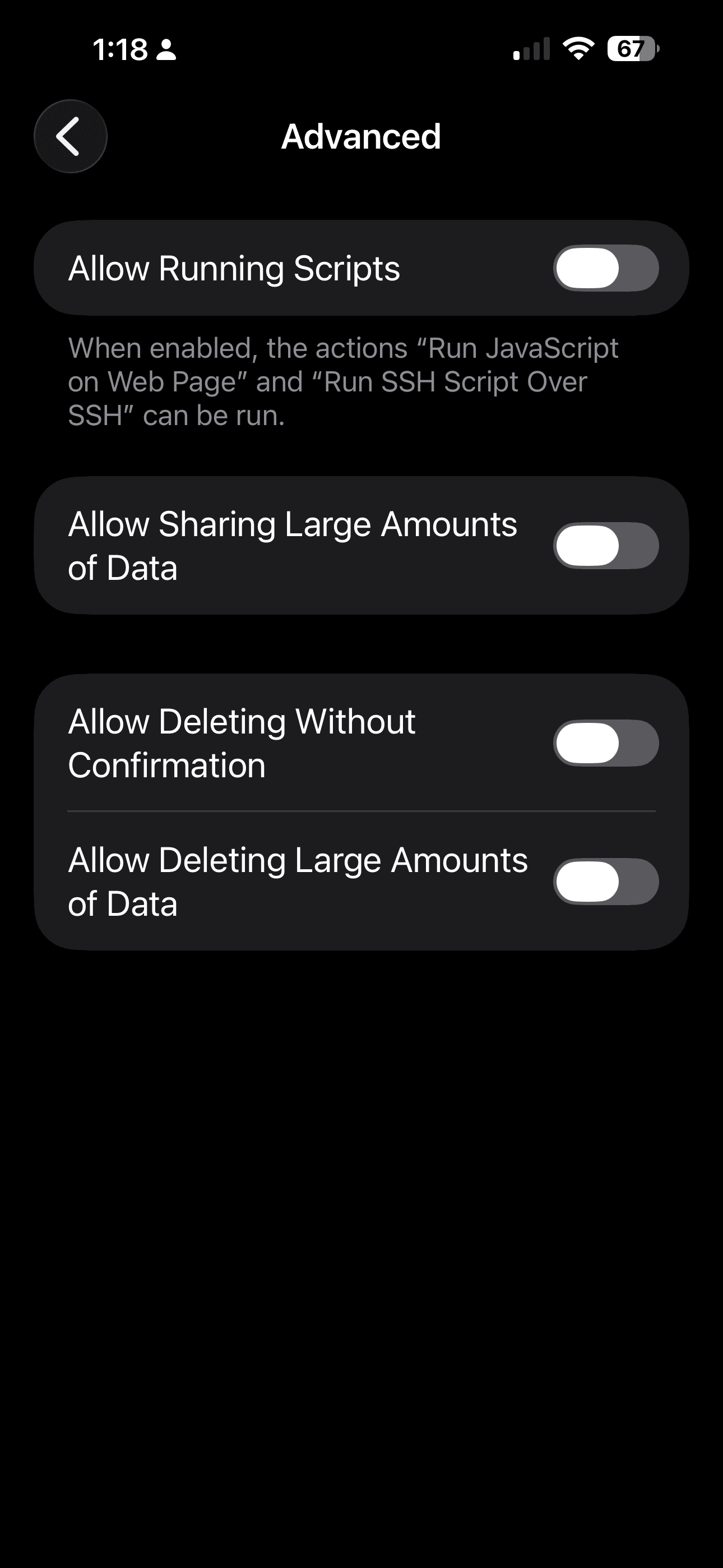
Advanced (default off)
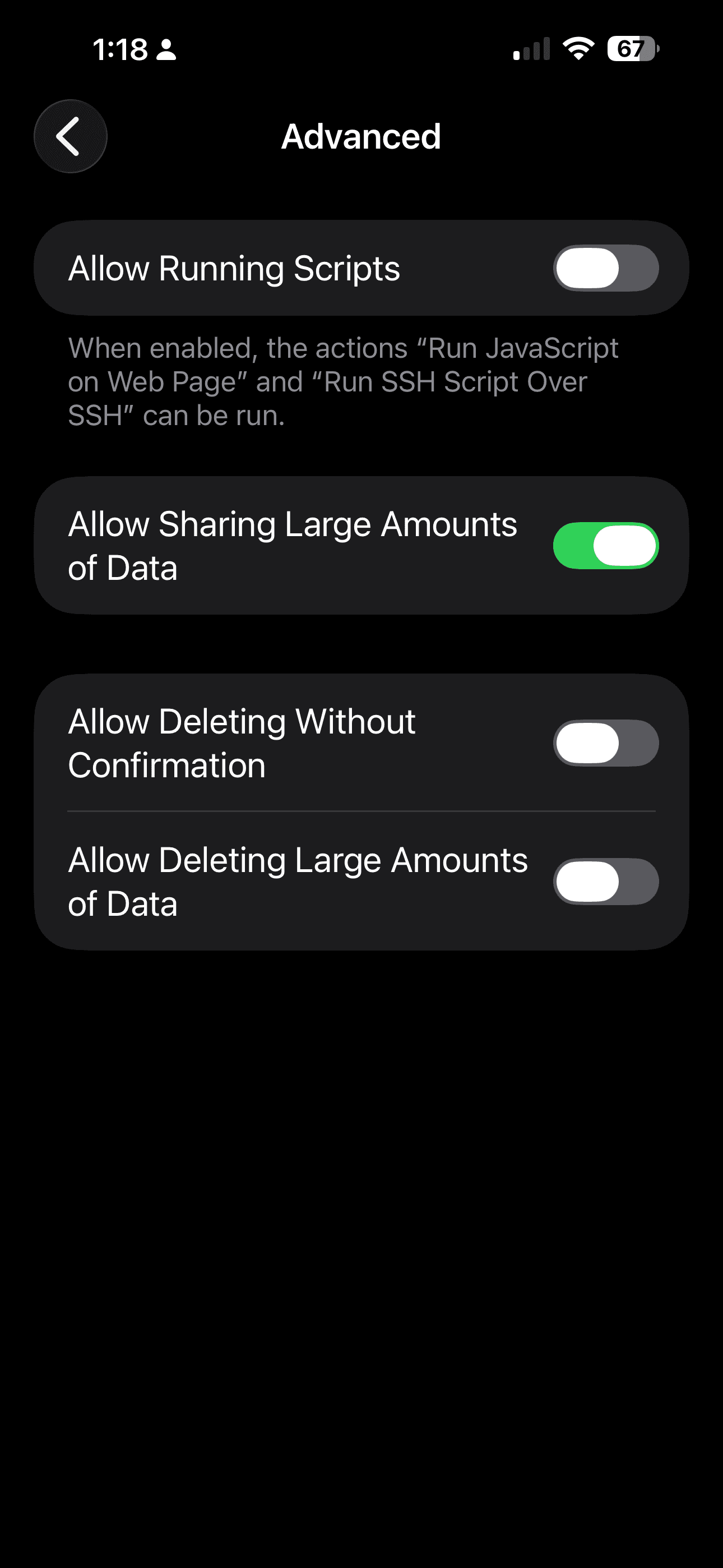
Toggle on — done
Step 4 — Generate your token
Back in Kinetic, click Generate token. This is a private key that lets the Shortcut talk to your account — keep it as private as a password.
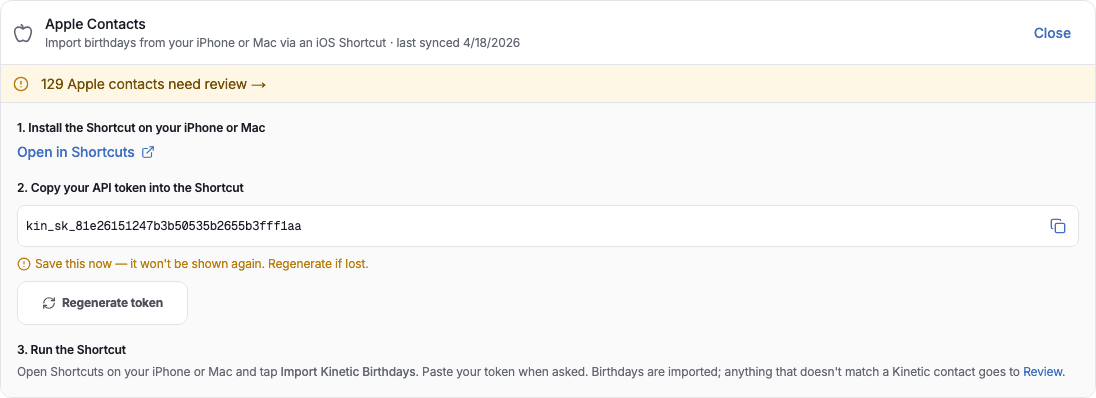
Step 5 — Copy the token (it's only shown once)
Hit the copy button next to the token. Save it somewhere safe right away — for security, Kinetic doesn't show it again. If you lose it, you can always regenerate.
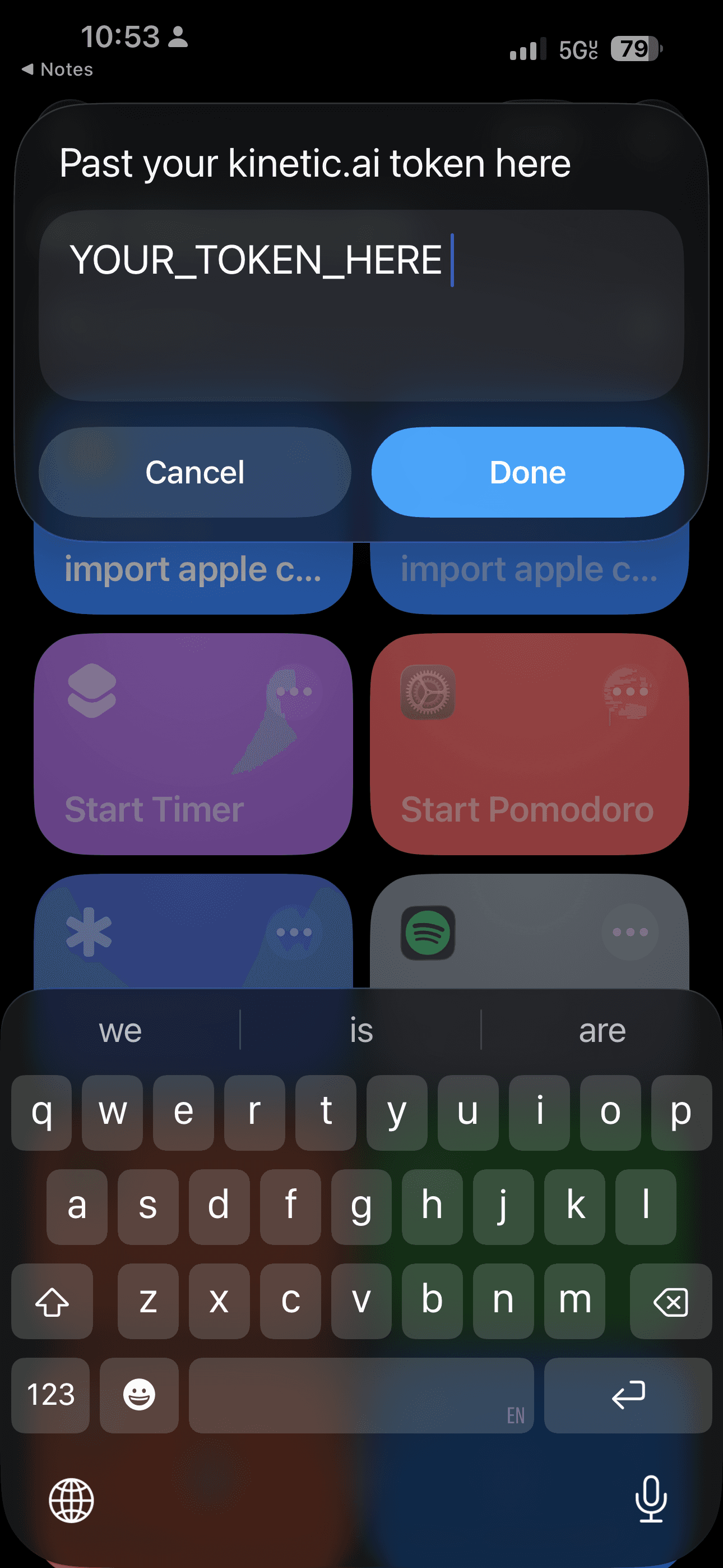
Step 6 — Run the Shortcut and paste the token
Open the Shortcuts app, tap kinetic.ai: import apple contacts, and paste your token when asked. The first run will ask permission to read your Contacts. Tap Allow.
Step 7 — Review anything that didn't auto-match
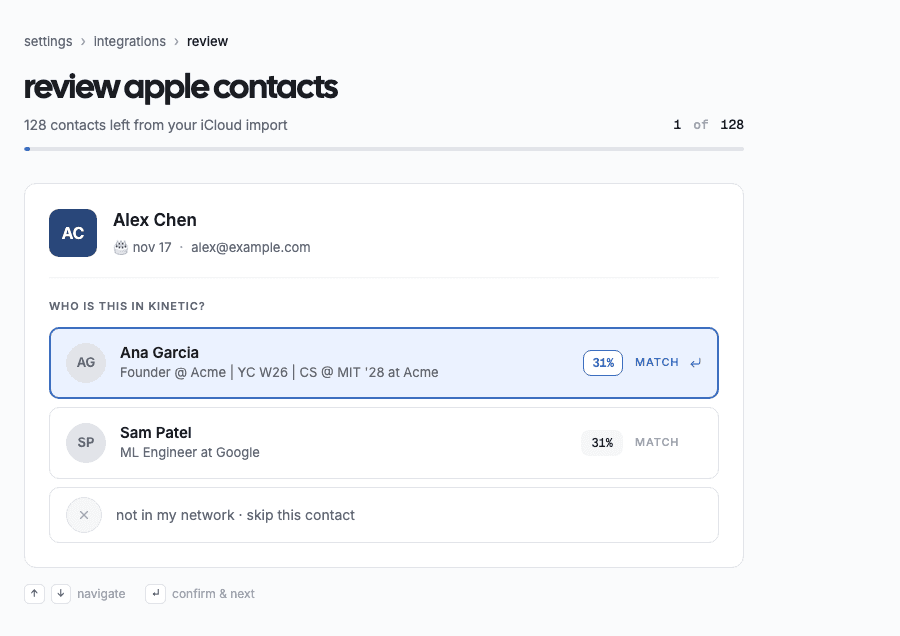
Birthdays for contacts we recognize are added immediately. Anyone we couldn't match by email or name lands in the Review queue. Open it, accept the right match (or skip), and you're done.
What we import — and what we don't
The Shortcut sends only what we need to match a contact and file a birthday: first and last name, birthday, and the emails and phone numbers we use as identifiers. We don't import addresses, photos, notes, or relationship labels from your Contacts.
You can revoke access at any time by regenerating your token — the old one stops working immediately.
Ready to transform your networking?
Join kinetic.ai today and start building more meaningful professional relationships with the power of AI.
Get Started